A Web-Based Chromebook Classroom Monitoring Tool and Resource Hub for Focused 1:1 Learning
Why 1:1 Chromebook Classrooms Need a Different Kind of Management
In a 1:1 Chromebook classroom, every student has a device, every lesson can include digital resources, and every distraction is only a tab away. Teachers are expected to facilitate learning, differentiate instruction, and maintain classroom culture while also managing student device monitoring, logins, links, updates, and attention. A web-based Chromebook monitoring platform with a teacher dashboard and resource hub addresses these realities by combining classroom screen monitoring, routine-building, and easy access to learning materials in one place.
The goal is not surveillance for its own sake; it’s digital classroom management that keeps instruction flowing. The best Chromebook monitoring tools support off-task behavior prevention with lightweight controls like open tab monitoring and the ability to close student tabs when online distraction control is needed. Because the solution is web-based, remote classroom monitoring can fit into teacher workflow tools without heavy installs, making it practical for schools with limited IT capacity. Teams that are just getting oriented can start from the Crostini homepage before moving into specific monitoring and resource hub routines.
Core Capabilities of a Web-Based Monitoring Tool
Live visibility that supports teaching, not policing
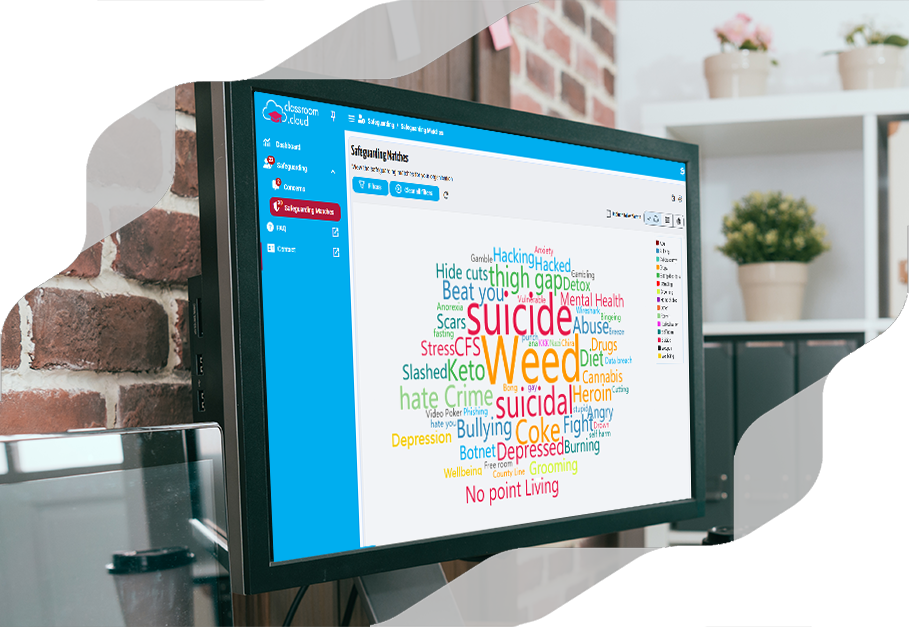
Classroom screen monitoring that displays live student thumbnails helps teachers quickly spot confusion, off-task behavior, or technical issues on student Chromebooks. With a clear teacher dashboard, student device monitoring becomes actionable: who is stuck, who is rushing ahead, and who needs a nudge back to the assignment. Fast awareness prevents small distractions from becoming lost minutes.
Focus tools for specific moments in a lesson
Lessons often move through phases—direct instruction, guided practice, independent work, and reflection—so a Chromebook monitoring platform should support classroom digital routines for each phase. Teachers may use online distraction control by limiting access to approved sites, using open tab monitoring during a quiz, or quickly redirecting attention when needed. In the moments that matter, the ability to close student tabs or apply focus settings should be quick, reversible, and aligned with the flow of instruction. Focus controls work best when they are quick to apply and easy to undo.
Messaging and nudges that keep students moving
In a 1:1 Chromebook classroom, teacher workflow tools like quick messages and discreet prompts can complement classroom screen monitoring without interrupting instruction. From the teacher dashboard, a teacher can send a reminder, share the correct link, or ask a brief check-in question when student device monitoring indicates a learner is off task. These nudges work best when they are minimal, respectful, and consistent with classroom digital routines.
The Resource Hub: Turning Routines into Repeatable Systems
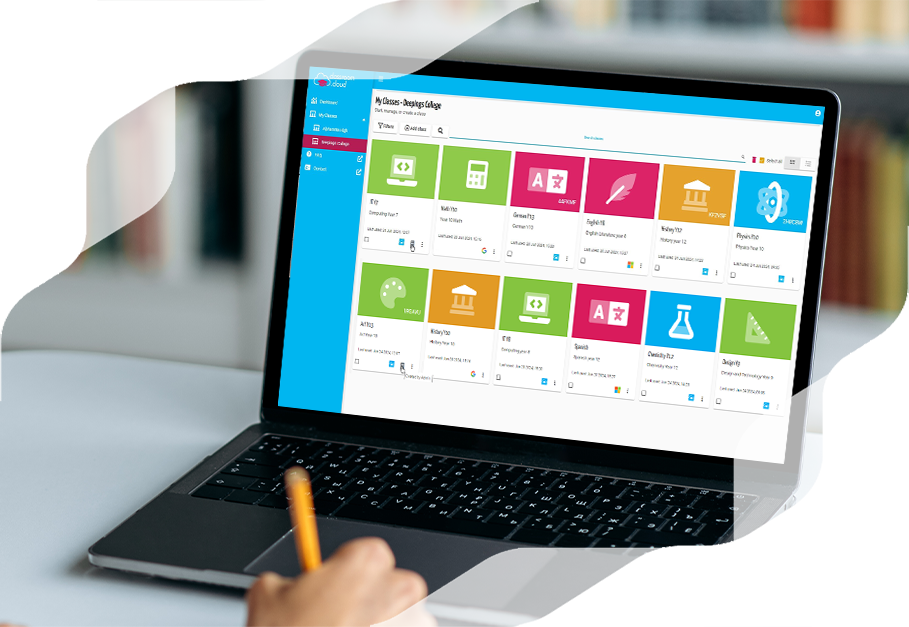
Chromebook monitoring alone doesn’t solve the daily overhead of distributing materials and managing digital transitions. A resource hub strengthens digital classroom management by organizing the “where do I click?” part of learning, reducing the time students spend hunting for links and increasing time on task. When paired with classroom screen monitoring, the hub also makes it easier to confirm students are on the right resource quickly.
Centralized access for students
Centralized access supports classroom digital routines by giving students one predictable place to start on their Chromebooks. A hub can present a daily agenda, assignment links, and common tools, reducing unnecessary browsing that can lead to off-task behavior. Consistency reduces cognitive load and supports student independence.
Reusable collections for units and routines
Repeatable collections turn digital classroom management into a system teachers can run reliably in a 1:1 Chromebook classroom. Teachers can save bell ringers, station rotations, and checkpoints as reusable sets, then launch them from the same teacher dashboard used for Chromebook monitoring. Over time, this builds a library of ready-to-launch routines that reduces setup time and supports consistent online distraction control.
How Monitoring and a Resource Hub Work Together During a Lesson
The real value emerges when Chromebook monitoring and the resource hub are integrated into a single teacher dashboard. Instead of juggling multiple tools, teachers can launch resources, use classroom screen monitoring with live student thumbnails to confirm students are on the right page, and intervene only when student device monitoring shows a problem. A typical flow might look like this:
- Start class with a posted agenda and a single launch point for the bell ringer.
- Shift into instruction mode with a temporary attention pause or a limited browsing setting.
- Release students into independent work with approved sites and clear task links.
- Monitor progress to identify who is stuck, then send targeted support or small-group invites.
- Close with an exit ticket link and a quick check that submissions are on track.
This workflow keeps pacing in the teacher’s hands while still building student independence through predictable classroom digital routines. With remote classroom monitoring and open tab monitoring available when needed, teachers can prevent off-task behavior without constantly interrupting learning. The result is a 1:1 Chromebook classroom that feels structured, calm, and consistent.
Privacy, Transparency, and Healthy Digital Culture
Any classroom monitoring solution should support trust through clear expectations about Chromebook monitoring and classroom screen monitoring. Schools should communicate what student device monitoring includes, when monitoring occurs, and how the teacher dashboard is used during instruction. When teachers frame visibility as support for focus and help—not punishment—students are more likely to accept online distraction control as part of normal classroom digital routines.
Look for platforms that support role-based access, limit data retention, and provide clear settings for instructional versus non-instructional time within the Chromebook monitoring environment. Strong privacy controls protect students and reduce risk for schools. Transparency also helps families understand how remote classroom monitoring supports learning while respecting boundaries.
What to Look for When Choosing a Web-Based Solution
Simple deployment and compatibility with school systems
Chromebooks are popular partly because they are manageable at scale, and Chromebook monitoring should match that reality. A web-based solution should deploy cleanly, integrate with common school systems, and keep the teacher dashboard fast and reliable on typical school networks. When setup is simple, teachers can spend more time using classroom screen monitoring and resource workflows and less time troubleshooting.
Teacher-first design that saves time
Teacher workflow tools should make student device monitoring feel effortless: find a student instantly, view live student thumbnails, check open tabs, and close student tabs when necessary. The teacher dashboard should support quick actions, sensible defaults, and class templates so digital classroom management takes seconds, not minutes. Time saved on management becomes time spent on instruction.
Support for differentiation and intervention
In a 1:1 Chromebook classroom, differentiation improves when Chromebook monitoring and the resource hub support flexible grouping and targeted support. Teachers can assign different links to different groups, use classroom screen monitoring to spot patterns, and intervene early when off-task behavior or confusion appears. A resource hub that supports multiple pathways helps provide accommodations discreetly while keeping digital routines consistent.
Getting Started: Practical Implementation Tips
Successful adoption depends on routines that connect the resource hub with Chromebook monitoring. Start small by standardizing one daily workflow—such as a consistent hub location for bell ringers and exit tickets—then teach students what “on task” looks like in a 1:1 Chromebook classroom. Introduce classroom screen monitoring features gradually, showing how live student thumbnails, open tab monitoring, and quick nudges help students get support faster and stay focused.
Establish clear norms for digital classroom management: when devices are open, when they are closed, and what happens when student device monitoring shows off-task behavior. Use online distraction control tools consistently—such as closing student tabs only when needed—and reinforce expectations through predictable classroom digital routines. Over time, the teacher dashboard becomes a normal part of instruction rather than an extra layer of work.
Conclusion: A Calm, Focused Digital Classroom Is Possible
A web-based Chromebook classroom monitoring tool and resource hub can make a 1:1 Chromebook classroom more focused and easier to run. By combining classroom screen monitoring, live student thumbnails, open tab monitoring, and the ability to close student tabs with centralized resources and repeatable classroom digital routines, teachers gain practical control over attention and pacing. Students benefit from predictable workflows, and schools benefit from scalable, school-friendly pricing options and ongoing support through educator guides and blog content that help teams implement digital classroom management well.