
In a 1:1 Chromebook classroom, learning can move faster, feedback can be more immediate, and resources are always available. The tradeoff is that distractions are also always available. When every student has a browser, a teacher is effectively managing dozens of open windows, shifting tabs, and competing notifications in real time. Chromebook monitoring and classroom screen monitoring tools exist to make that job realistic, not overwhelming.
A web-based student device monitoring approach is especially appealing for K-12 teams because it reduces setup friction. Teachers can open a teacher dashboard, view student activity, and respond to off-task behavior without interrupting instruction. Done well, remote classroom monitoring is less about “catching” students and more about protecting attention so students can practice sustained focus.
What Chromebook monitoring looks like in practice
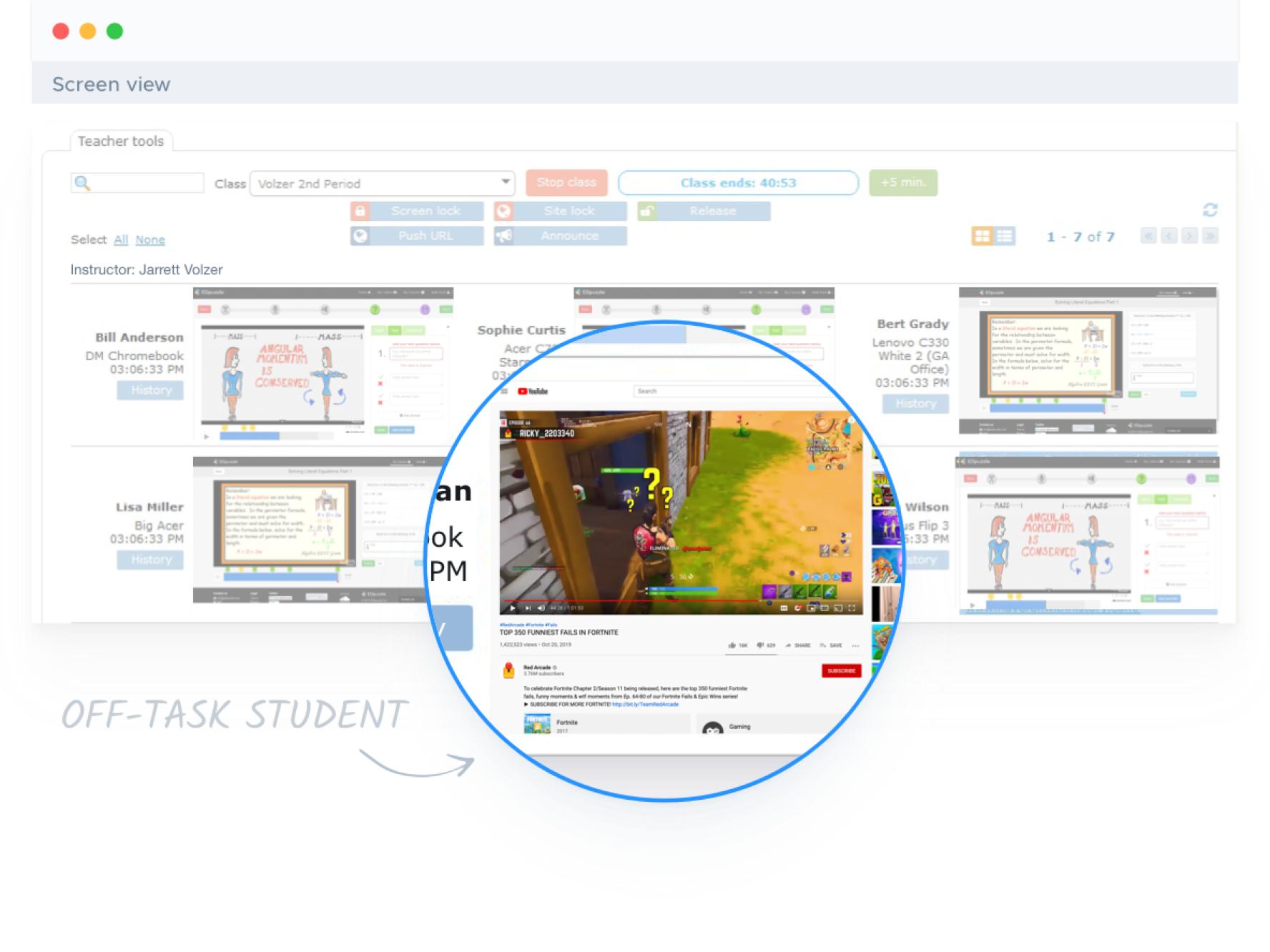
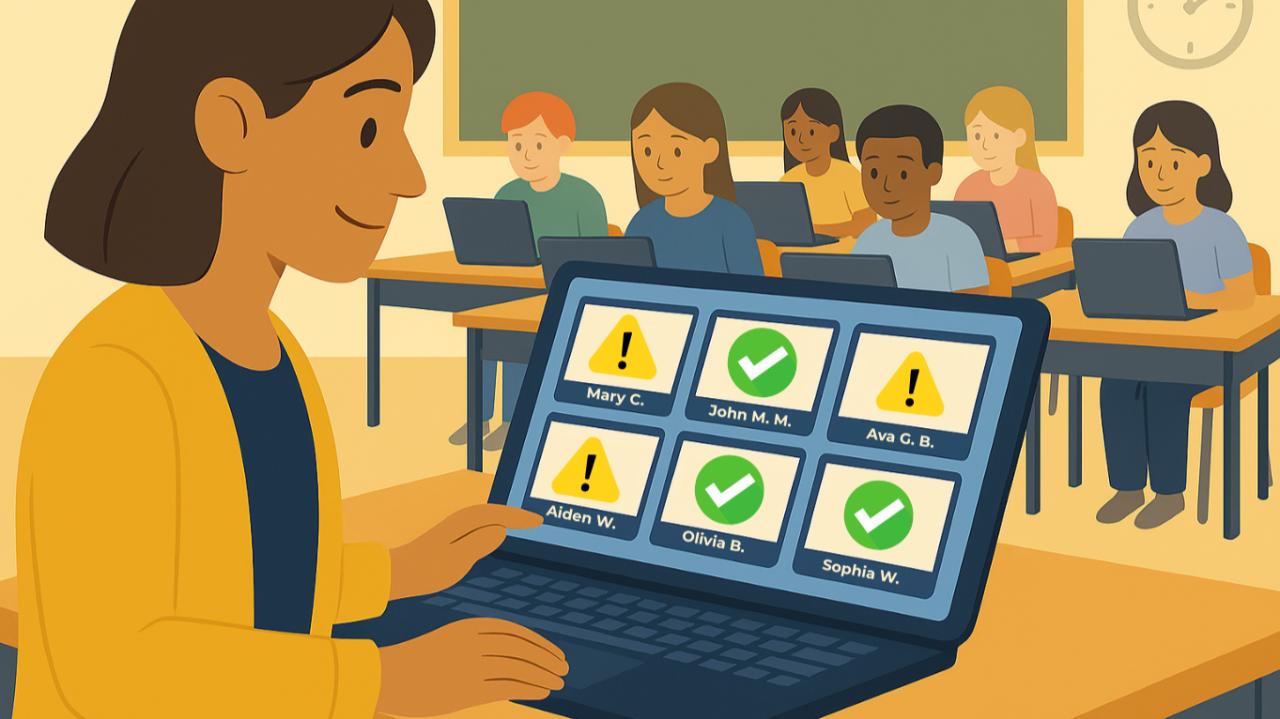
Most classroom management software for Chromebooks centers on a live view of student browsing and screen state. Instead of walking the room to glance at screens, a teacher can see real-time thumbnails for the entire class at once. This provides quick context: who is on the assignment, who is stuck, and who has drifted to entertainment or unrelated searches.
Effective classroom screen monitoring typically includes three layers of visibility:
- At-a-glance screens through a grid of thumbnails that updates continuously.
- Open tab tracking and recent site visibility to understand intent and patterns, not just a single moment.
- Student-by-student detail views for conferences, support, or documentation.
When visibility is paired with lightweight controls, teachers can take action in seconds. For example, if a student opens a game site during independent work, a teacher can close student tabs or redirect the student back to the correct resource. The best workflows are quiet and fast, so the class stays in learning mode.
Key features teachers rely on
Different schools have different expectations for device oversight, but several capabilities show up repeatedly in successful deployments:
1) Teacher dashboard built for scanning
In a classroom, time is measured in moments. A teacher dashboard should prioritize quick scanning: clear student identifiers, stable layout, and simple grouping for sections or periods. If the interface requires multiple clicks to answer “Who is off-task right now?”, it will not be used consistently.
2) Open tab tracking and browsing context
Open tab tracking helps teachers understand the difference between productive research and wandering. A student might have multiple tabs open for legitimate reasons: a document, a reference page, and a vocabulary tool. The goal is not to eliminate tabs; it is to keep tabs aligned with the task.
3) Off-task detection that supports teaching, not policing
Off-task detection can be as simple as flagging known distractions or as nuanced as recognizing patterns that suggest disengagement. The most helpful systems allow teachers to set expectations for a particular activity. A reading day might allow a digital library and note-taking tools; a test might allow only the assessment environment. Context matters.
4) Quick interventions that preserve classroom flow
When intervention is needed, speed and subtlety are essential. Closing a distracting tab, sending a short message, or prompting a student to return to the assignment are often enough. The aim is digital classroom focus without turning instruction into constant enforcement.
5) No-install monitoring and easy session starts
Teachers often prefer no-install monitoring experiences because they reduce the burden of troubleshooting. In many Chromebook environments, device management is already handled centrally; teachers want a tool that works reliably within that ecosystem. Simple class sessions, predictable student joining, and minimal steps help ensure adoption across grade levels and subjects.
How monitoring supports learning outcomes
Student online distraction control is not only about limiting entertainment. It can also support academic habits that are hard to build in an always-connected environment. Monitoring tools can help teachers:
- Identify students who appear on-task but are actually stuck, repeatedly refreshing or searching without progress.
- Spot avoidance behaviors early, such as tab-hopping during writing or math practice.
- Reinforce routines by keeping the class aligned during transitions between activities.
- Reduce the need for whole-class reminders by addressing issues privately.
In this way, classroom management software becomes a support tool for instruction. It gives the teacher more time to teach and less time to manage devices.
Choosing the right Chromebook monitoring approach
Schools evaluating K-12 edtech often compare products by feature checklists alone. A better approach is to match capabilities to classroom realities: class size, age group, and teaching style. Consider the questions below when reviewing options.
| Need | What to look for | Why it matters |
|---|---|---|
| Fast awareness | Live thumbnails, stable grid, clear student names | Teachers can scan the room digitally in seconds |
| Behavior context | Open tab tracking, recent activity summaries | Reduces false assumptions and supports coaching |
| Immediate correction | Close student tabs, redirect, gentle prompts | Prevents small distractions from becoming derailments |
| Flexible norms | Class modes or activity-based expectations | Different lessons require different levels of restriction |
| Low friction | Web-based access, quick session start, minimal setup | Higher adoption and fewer lost instructional minutes |
Classroom workflows that work
Even the best tools need consistent routines. The following workflows help teachers use remote classroom monitoring effectively without creating an adversarial atmosphere:
Start with transparency
Explain to students what is monitored and why. Frame it as an attention aid and a safety measure, not a “gotcha.” When students understand expectations, the tool becomes part of classroom norms.
Use monitoring as a feedback loop
If many students drift during a particular activity, that data can be a signal to adjust pacing, provide clearer instructions, or add checkpoints. Monitoring can reveal when the task is too easy, too hard, or too ambiguous.
Intervene privately first
A quiet redirect is often more effective than calling out behavior publicly. A brief message or closing a distracting tab can reset focus with minimal disruption.
Reserve stronger controls for high-stakes moments
During assessments or sensitive activities, tighter controls may be appropriate. During creative projects, students may need broader access. A balanced approach builds trust and supports independence over time.
Common pitfalls to avoid
Chromebook monitoring can backfire if it is used inconsistently or without clear purpose. Avoid these traps:
- Over-monitoring every click, which can undermine student autonomy and increase anxiety.
- Relying on enforcement instead of instruction, which can mask underlying confusion or skill gaps.
- Ignoring accessibility and differentiation needs when setting expectations for allowed sites and tools.
- Using monitoring data without context, which can misinterpret legitimate research as off-task behavior.
Building a focused digital classroom
In a connected classroom, attention is a shared resource. Teacher tools that provide classroom screen monitoring, open tab tracking, and quick tab controls can protect that resource without interrupting learning. When implemented with clear norms and thoughtful routines, Chromebook monitoring supports both accountability and independence.
The goal is simple: keep students on task long enough to do meaningful work, practice skills, and experience progress. With the right web-based approach, teachers spend less time chasing distractions and more time teaching.